
Server Importer
Import servers from other panels in one click.
On this page
The Server Importer feature allows you to move data from an old server or hosting provider directly to the Arqonara panel without having to manually download and re-upload files.
Step 1: Go to the Web Panel & Select a Server#
- Open your browser and visit the web panel page at panel.arqonara.com.
- Log in using your account.
- On the main page that lists your Servers, select the server you want to use as the destination for your data by clicking the "Manage Server" button.
Step 2: Navigate to the Server Importer Menu#
- After entering your server's dashboard/console, look at the main navigation menu on the left side of the screen.
- Find the Management category.
- Under that category, click the Server Importer menu.
Step 3: Start the Import Process#
- On the Server Importer page, you'll see an empty view if you haven't performed an import before.
- Click the red button labeled + Add Import in the center of the screen to open the configuration window.
Step 4: Fill in the Configuration & Choose FTP/SFTP#
An "Add Server Import" pop-up will appear. Here you need to enter the details of the source server where your old data is located:
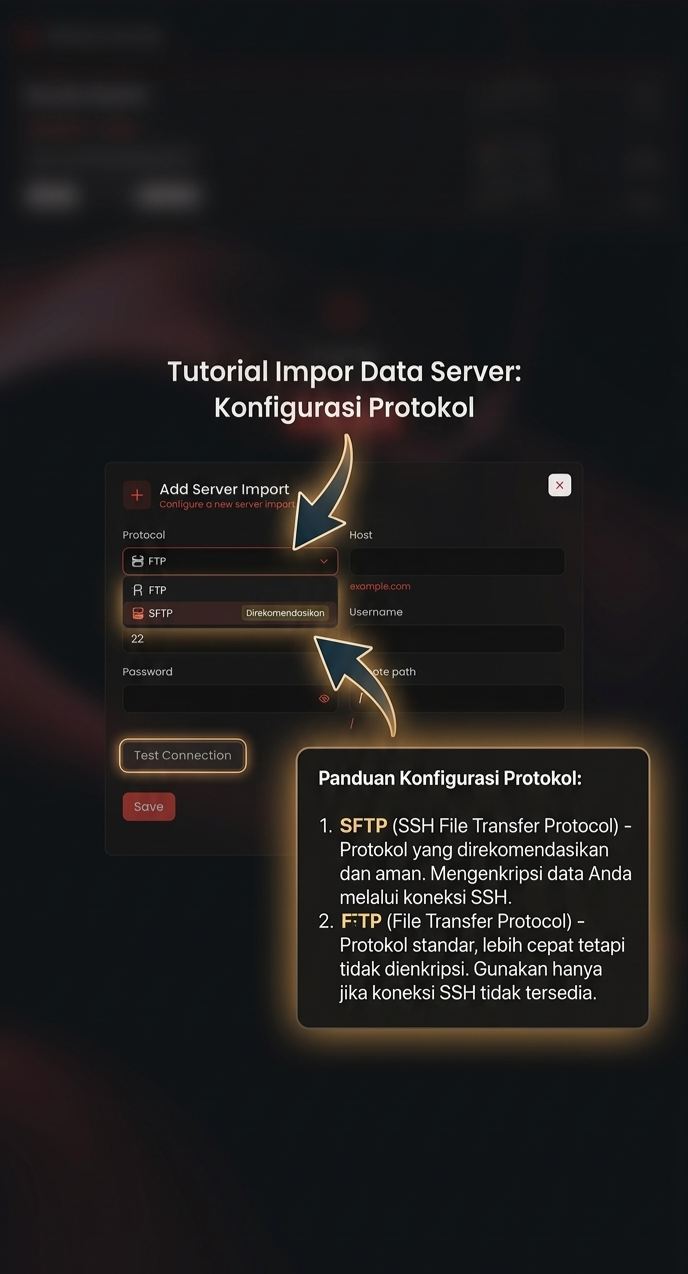
- Protocol: Click this dropdown to choose the connection type. You have two options:
- FTP (File Transfer Protocol): The standard protocol. Choose this if your source server only supports plain FTP. Its default port is 21. (Note: FTP transfers data without encryption).
- SFTP (SSH File Transfer Protocol): Highly recommended. SFTP uses encryption, so your data (especially your password) is very secure during the transfer. Its default port is 2022.
- Host: Enter the IP address or domain name of your source server (e.g.:
123.45.67.89ornode1.hostinglama.com). - Port: Adjust it to the selected protocol (21 for FTP or 2022 for SFTP), unless your source host uses a custom port.
- Username & Password: Enter the FTP/SFTP login details for your source server.
- Remote Path: Type the directory/folder on the old server that you want to pull data from. To pull the entire contents of the file manager, type
/.
Step 5: Test the Connection & Save#
- Once all the data is filled in, click the Test Connection button. This is useful for checking whether the Arqonara panel can successfully connect to your source server.
- If the connection test succeeds (connection successful), click the Save button.
The system will automatically start pulling and importing files from the source server to your Arqonara server.